Developer preview
PLUGG
Windows audio plug-ins in your Linux DAW.
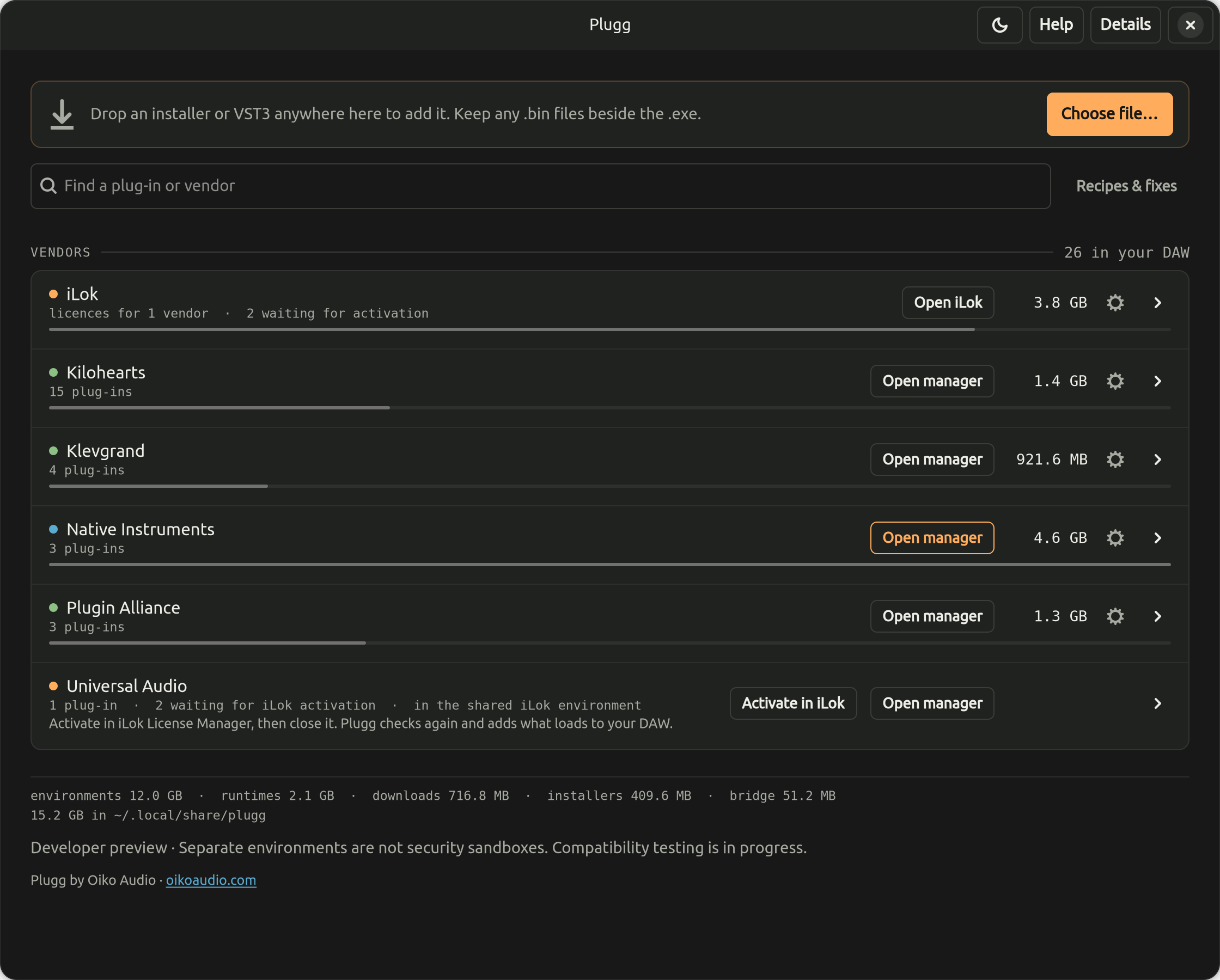
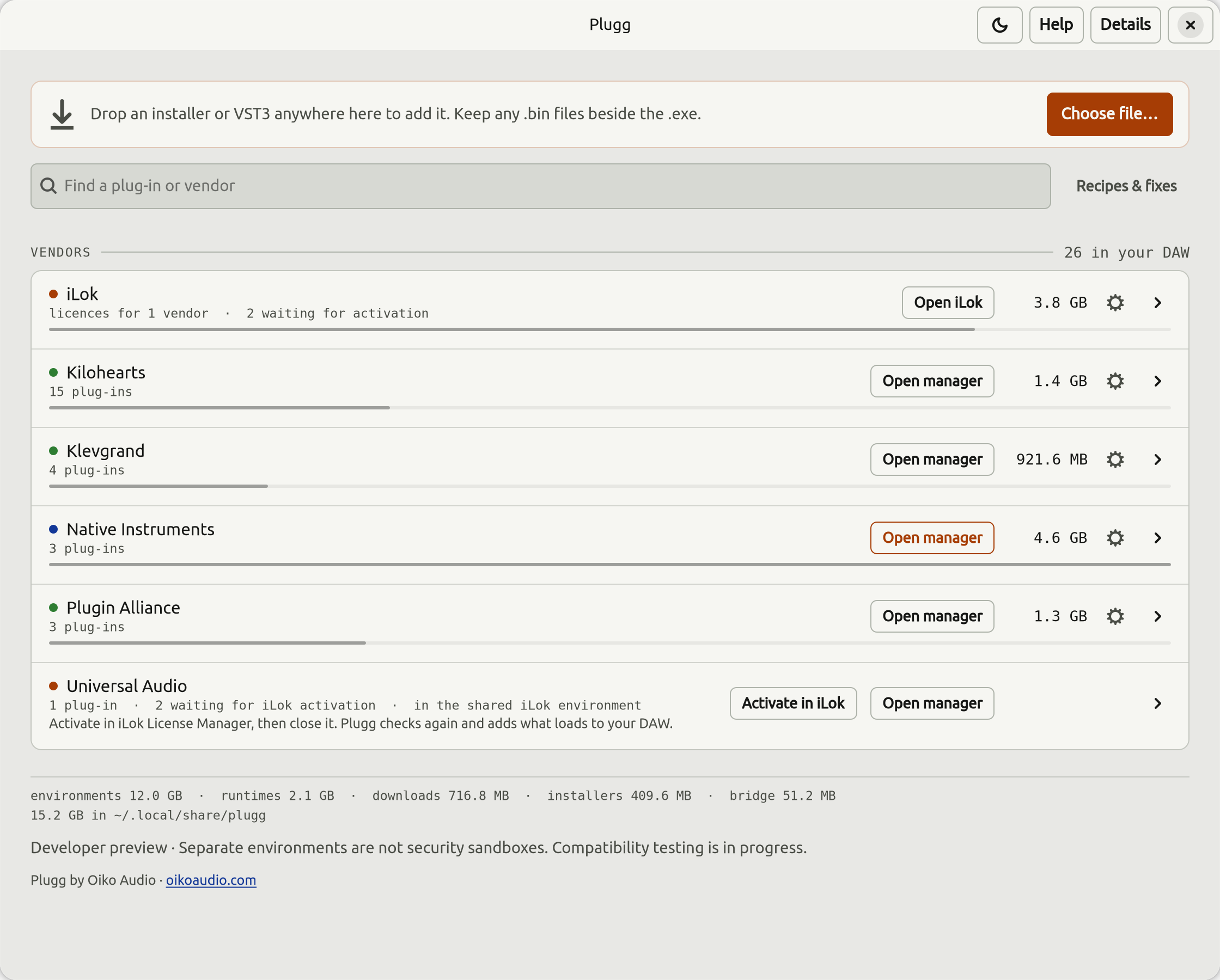
Drop in a vendor's installer or a Windows VST3, and the plug-in shows up in the DAW as a native VST3. Plugg also handles vendor apps and iLok-licensed plug-ins.
01 / EXPLORE
Start here
Plugg is for musicians and producers on Linux who want to use Windows plug-ins. A free VST3 is usually the simplest case, though it can still need a fix, for example a graphics setting or a Microsoft C++ runtime. A plug-in that comes with a vendor's installer, a manager app or iLok licensing takes more work, and that is where most of Plugg's fixes go.
Why Plugg exists
With Wine and yabridge, some Windows plug-ins work right away. Others take effort. Getting iLok to work for several vendors, or running installers built on modern Windows libraries, is a nightmare.
Plugg gives each vendor its own environment, so a new installer can't break one that already works. Each fix goes into that vendor's recipe or into Plugg's runtime, so the next person who drops in the same installer gets it without the detective work. A vendor that hasn't been tried yet will probably still need a fix of its own.
Installers and VST3 files
Plugg takes the files a vendor supplies: an EXE installer, an MSI, or a Windows VST3 file or bundle. It runs the installer in the background, in a private Windows environment, and keeps a copy.
Vendor apps and iLok
Native Access, UA Connect, Softube Central, Arturia Software Center, Klevgrand Helper, Kilohearts Installer and other vendor apps open from the vendor's row in Plugg. Sign in, install products, and close the app. Plugg then adds whatever the app installed to the DAW. iLok-licensed plug-ins share one environment with PACE License Support, and Plugg's runtime includes the Wine fixes the PACE installer needs.

Protecting activations
Plugg records which environments hold activations and refuses the operations that could cost a licence seat. Every environment on a computer presents the same machine identity, so one computer counts as one machine against a vendor's limit.
From installer to DAW
- Drop an installer or a VST3 on the Plugg window.
- Plugg sets up a Windows environment for that vendor, or reuses the one it already has.
- The installer runs, or the vendor's app opens for signing in and installing products.
- Plugg publishes the new plug-ins to
~/.vst3/plugg. Rescan plug-ins in the DAW.
02 / REFERENCE
Features
What Plugg does, how it works and how to install it.
What it does
- Native VST3s
- Plugg publishes each plug-in where DAWs look for VST3s, in
~/.vst3/plugg. Each keeps its original VST3 class ID, so saved projects find it again. - Vendor apps
- The vendor's manager or helper opens from its row. When you close it, Plugg checks what it installed and adds it to the DAW.
- One environment per vendor
- Each vendor gets its own Windows environment. A broken installer or an update from one vendor doesn't touch another's.
- iLok and PACE
- iLok-licensed plug-ins share one environment with PACE License Support, which iLok sees as one computer. Activate them in iLok License Manager.
- Activations
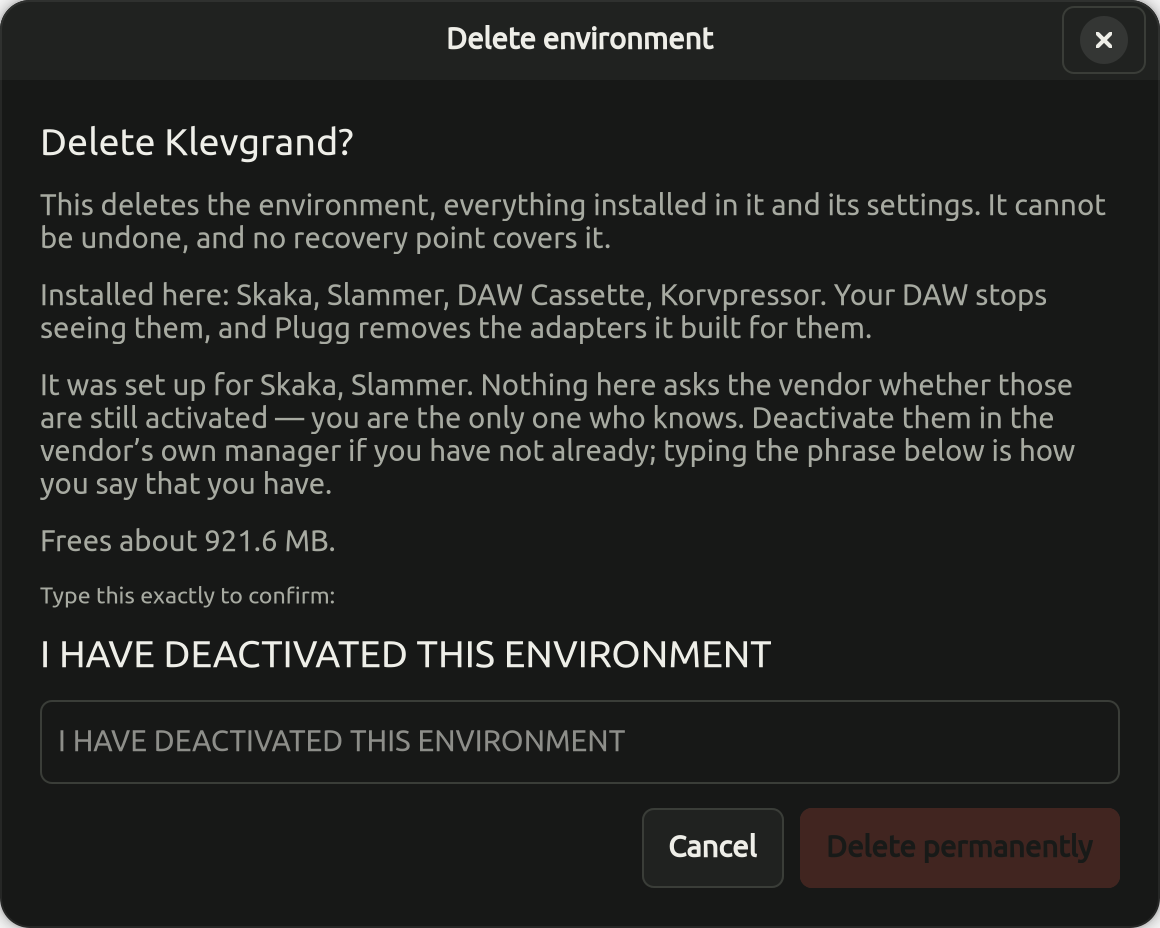
- Plugg refuses operations that could cost a licence seat. Deleting an environment that holds activations takes a typed confirmation that names what's at stake, for example "I HAVE DEACTIVATED THIS ENVIRONMENT".
- One machine identity
- Every environment on a computer presents the same machine identity, so each environment doesn't count as another machine against a vendor's limit.
- Status dots
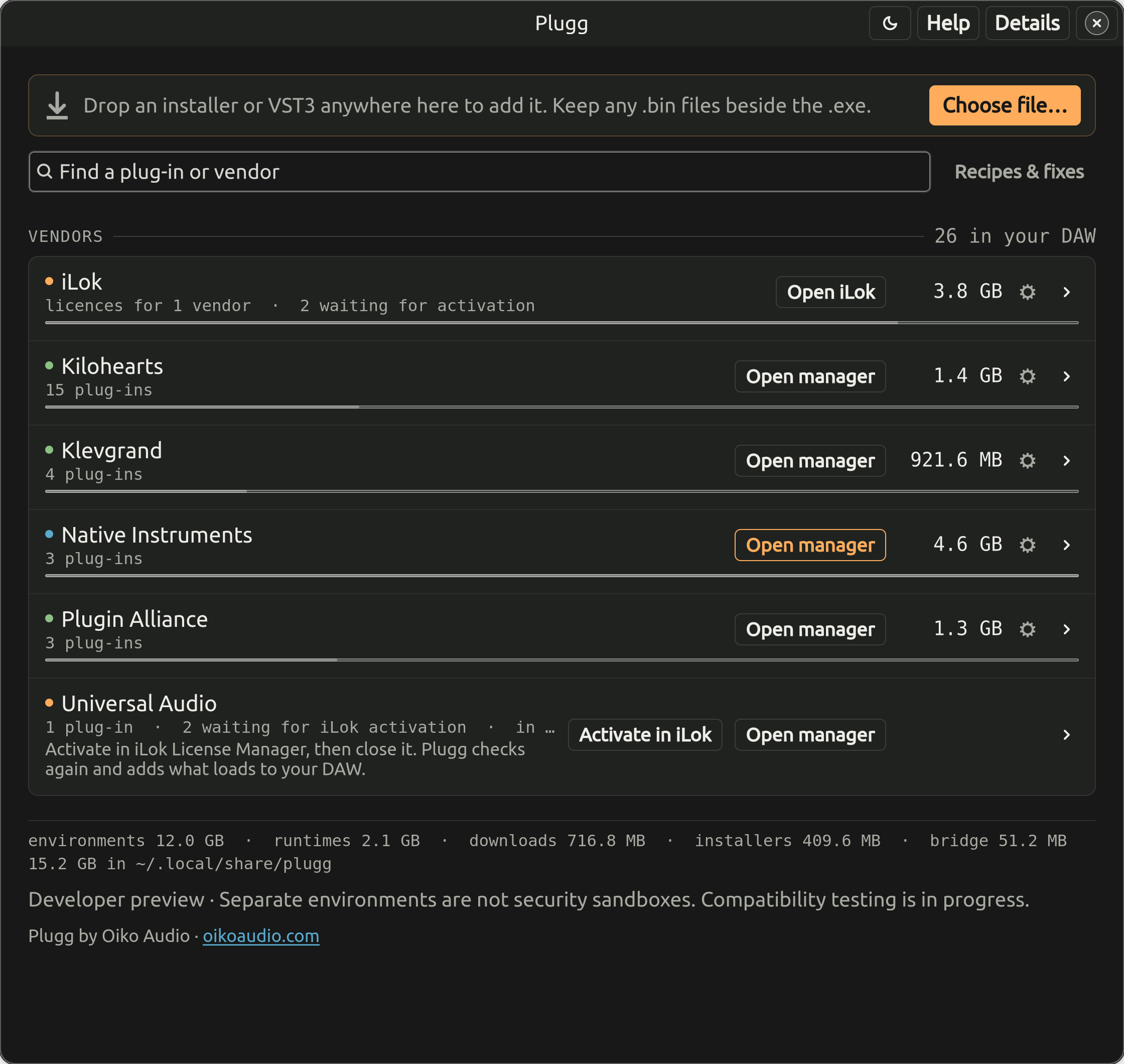
- Green means the vendor's plug-ins are in the DAW. Amber means something needs you, and the row has the button that does it, such as "Activate in iLok". Blue means the vendor's app is running.
- Disk use
- Plugg shows the size of each vendor and of the whole library folder. Leftovers go into a cleanup list, so nothing takes up space unnoticed.
- Crash handling
- If a plug-in takes its Windows host down, Plugg fails the load within seconds instead of leaving the DAW waiting.
- Keyboard and screen readers
- Arrow keys and Enter move through the list, and typing searches. Every control has a label for screen readers. The window follows the desktop's text size and high-contrast settings. Nobody who relies on a screen reader has tested Plugg yet, so feedback is welcome.
Recipes are data, not scripts
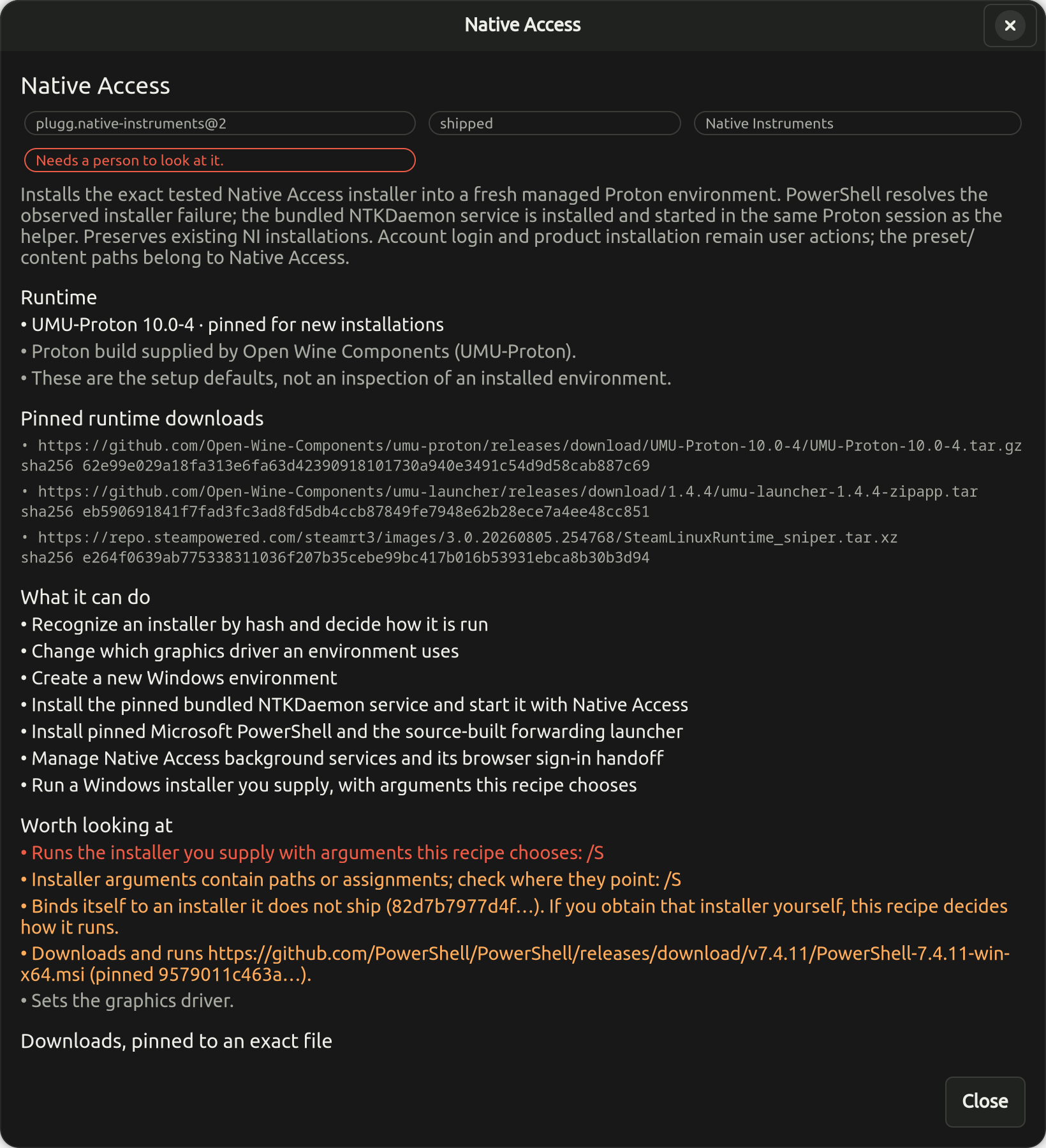
A recipe describes how to set up a vendor: the runtime, graphics settings, Microsoft components and installer arguments. It is a TOML file, never a script. Before you use a recipe you didn't write, Plugg explains it in plain language: what it can do, every download and its hash, the exact arguments any installer would get, and anything worth a second look.
In the app, choose Add recipe… on the Recipes & fixes page, and Plugg shows the same report before it adds the recipe.
Help and known fixes
Help is an FAQ in plain words. When you add an installer, Plugg says what is already known about it. That can be a tested setup, the vendor's tested notes, another project's research on the same file, or a native Linux version you should use instead.

Troubleshoot opens the reusable fixes for that vendor.
Licences stay on your computer
Licences live where the vendor's own app puts them, inside that vendor's environment under ~/.local/share/plugg/environments/. iLok licences stay in iLok License Manager, in the shared iLok environment. Plugg keeps no serial numbers, licence files, passwords or account details. For a protected environment it records only the product names and hashed identity values. Licensing safety has the details.
Plugg goes online only to download its own parts: Proton, its Wine modules, the plug-in bridge and Microsoft components. It fetches them from a fixed list of sites and checks each one by hash. It sends nothing about you or your plug-ins anywhere. The vendor's app signs in and activates on its own, as it would on Windows.
Back up ~/.local/share/plugg with the rest of your home folder. Don't post environment folders or vendor app logs online, because they can contain the machine's identifiers or account details.
How it works
Plugg manages a Proton runtime: a pinned UMU-Proton build plus Plugg's own patched Wine modules, which you can rebuild byte for byte from source. Each vendor gets its own Wine prefix.
A patched build of yabridge bridges each plug-in into the DAW. Each environment runs one long-lived session that all its plug-ins share. An earlier design used a separate container per plug-in instance, and instances stalled each other. The shared session fixed that.
Plugg pins the runtime and bridge builds and checks them by hash.
Install
Download the package for your system from the latest release on GitHub, then install it from the folder you saved it to:
- Ubuntu 24.04 or newer, Debian 13 or newer: download the .deb, then run
sudo apt install ./plugg_*_amd64.deb. - Fedora 42 or newer: download the .rpm, then run
sudo dnf install ./plugg-*.x86_64.rpm. - Arch and Arch-based systems such as CachyOS and EndeavourOS: download the .pkg.tar.zst, then run
sudo pacman -U ./plugg-*-x86_64.pkg.tar.zst.
Plugg will also be in the AUR once the AUR takes new accounts again. On other distributions, build from a checkout.
Start Plugg from your applications menu, or run plugg gui. It downloads its Proton runtime the first time it needs it. Then drop in an installer, and add ~/.vst3/plugg to the DAW's plug-in folders.
Plugg is a developer preview, and not every plug-in will work. See Status before you rely on it.
03 / STATUS
Status
What is tested, and what to expect.
Plugg is a developer preview. It is developed and tested on one machine running CachyOS, Hyprland and Bitwig. Not every plug-in will work.
Klevgrand and Variety of Sound work. Arturia is experimental, and so are Native Instruments, Plugin Alliance and Universal Audio through iLok. Kilohearts and other free plug-ins can be dropped in as VST3 files or installers. A vendor that hasn't been tested yet will often need a fix of its own before it works.
What has been tested changes every week, so this page doesn't list products. The app tells you what is known about an installer when you add it, and Plugg's compatibility notes list what has been tested for each vendor.
iLok
iLok-licensed plug-ins work in one shared environment. Creating that environment is still a command-line step, and experimental.
Separate environments are not security sandboxes
Separate environments keep one vendor's setup away from another's. They don't protect your system from the software you install. Install plug-ins you would trust on Windows.
Other DAWs
Plugg is tested in Bitwig. REAPER, Ardour and other DAWs haven't been tested separately yet.
Plugg has no helpdesk
One person makes Plugg. Good bug reports get read and fixed. To report a bug, open Help and choose Report a bug in Plugg…. The form asks for what makes a report useful, then opens GitHub's issue form in the browser, with a summary you can read and edit first. Nothing leaves your computer unless you submit it.
I usually can't answer requests to get one particular setup working. Start with Help, the known fixes and Troubleshoot in the app.
04 / FAQ
FAQ
- Does it work with REAPER or Ardour?
- Not validated yet. Plugg publishes ordinary VST3 bundles in
~/.vst3/plugg, but it has only been tested in Bitwig. - Can I use free plug-ins?
- Yes. Drop in the Windows VST3 file or bundle, or the installer it came with. Some still need a fix, for example a graphics setting or a Microsoft C++ runtime, which a recipe can provide.
- What about iLok?
- iLok-licensed plug-ins work in one shared environment with PACE License Support. Creating that environment is still a command-line step, and experimental. When a plug-in waits for activation, its row turns amber and shows Activate in iLok. Close iLok License Manager afterwards, and Plugg checks again.
- Will it use up my activations?
- Every environment on a computer presents the same machine identity, so vendors see one machine. Plugg also refuses operations that could lose an activation. Deactivate a plug-in in the vendor's app before you delete its environment.
- Is each environment a sandbox?
- No. Separate environments keep vendors' setups apart, but they are not security sandboxes.
- Can I check a recipe before I use it?
- Yes. Recipes are TOML files, not scripts. Plugg explains what a recipe can do, what it downloads with each hash, and anything worth a second look, before you add it.
- What happens when a plug-in crashes?
- Plugg notices when a plug-in takes its Windows host down and fails the load within seconds, so the DAW doesn't wait forever.
- Where are my licences, and what goes online?
- Licences stay where the vendor's app puts them, inside that vendor's environment on your computer. Plugg keeps no serial numbers, passwords or account details. It goes online only to download its own parts, each checked by hash, and sends nothing about you or your plug-ins. See Licences stay on your computer.
- Can I use Plugg with a screen reader or the keyboard?
- It is built for both. Arrow keys and Enter move through the vendor list, typing searches, and every control has a label for screen readers. Plugg follows the desktop's text size and high-contrast settings. It hasn't been tested by people who rely on a screen reader yet, so please open an issue with anything that gets in your way.
- Is there a Flatpak?
- No, and none is planned. If you want a Flatpak, use Cabinet.
- Which distributions?
- Plugg is developed on CachyOS. There are packages for Ubuntu 24.04 or newer, Debian 13 or newer, Fedora 42 or newer, and Arch and Arch-based systems. See Install.
- What if it doesn't work?
- Start with Help, the known fixes Plugg shows for the installer, and Troubleshoot. Plugg has no helpdesk, but I read good bug reports. To report one, open Help and choose Report a bug in Plugg…. The form asks for what I need to reproduce the problem.
05 / CREDITS
Credits
Plugg and Cabinet
Cabinet is a related free project with the same basic design: one Wine prefix per vendor and a patched yabridge. It is a Flatpak, installs with one command on any distribution, including image-based ones such as Fedora Silverblue, and has a curated, tested catalogue. If you want a Flatpak, Cabinet is the one to use.
Credits and licence
Plugg is free software under the GPL-3.0-or-later licence. The source is on GitHub. It is built on yabridge by Robbert van der Helm, on Wine, and on Proton and UMU.
Plugg is not affiliated with Valve, Bitwig or any plug-in vendor. iLok and PACE are trademarks of their owners.